
Saved Programs
The Saved Programs page lets you build and manage your school list — a curated set of PA programs you're considering applying to.
How to Access
Click Saved Programs in the sidebar, or navigate to /me/saved-programs.
How to save programs
Three ways to add a program to your list:
- From the Programs search page — click the star / save button on any program card.
- From a program detail page — use the Save button at the top.
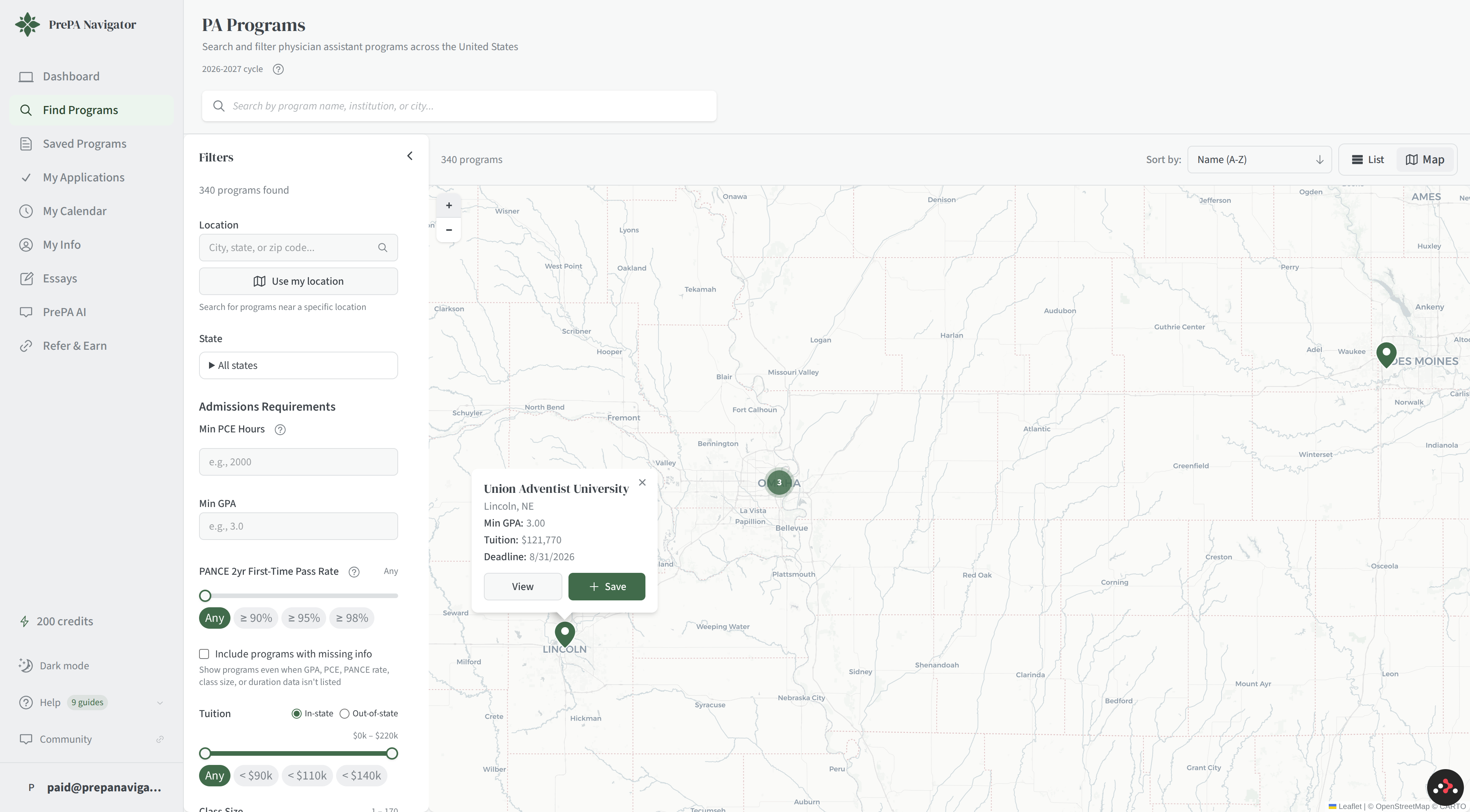
- From the map view — open any pin's popup and click Save without leaving the map. Handy when you're building a list of 20+ programs by region.
List categories
When you save a program, you assign it to one of three categories:
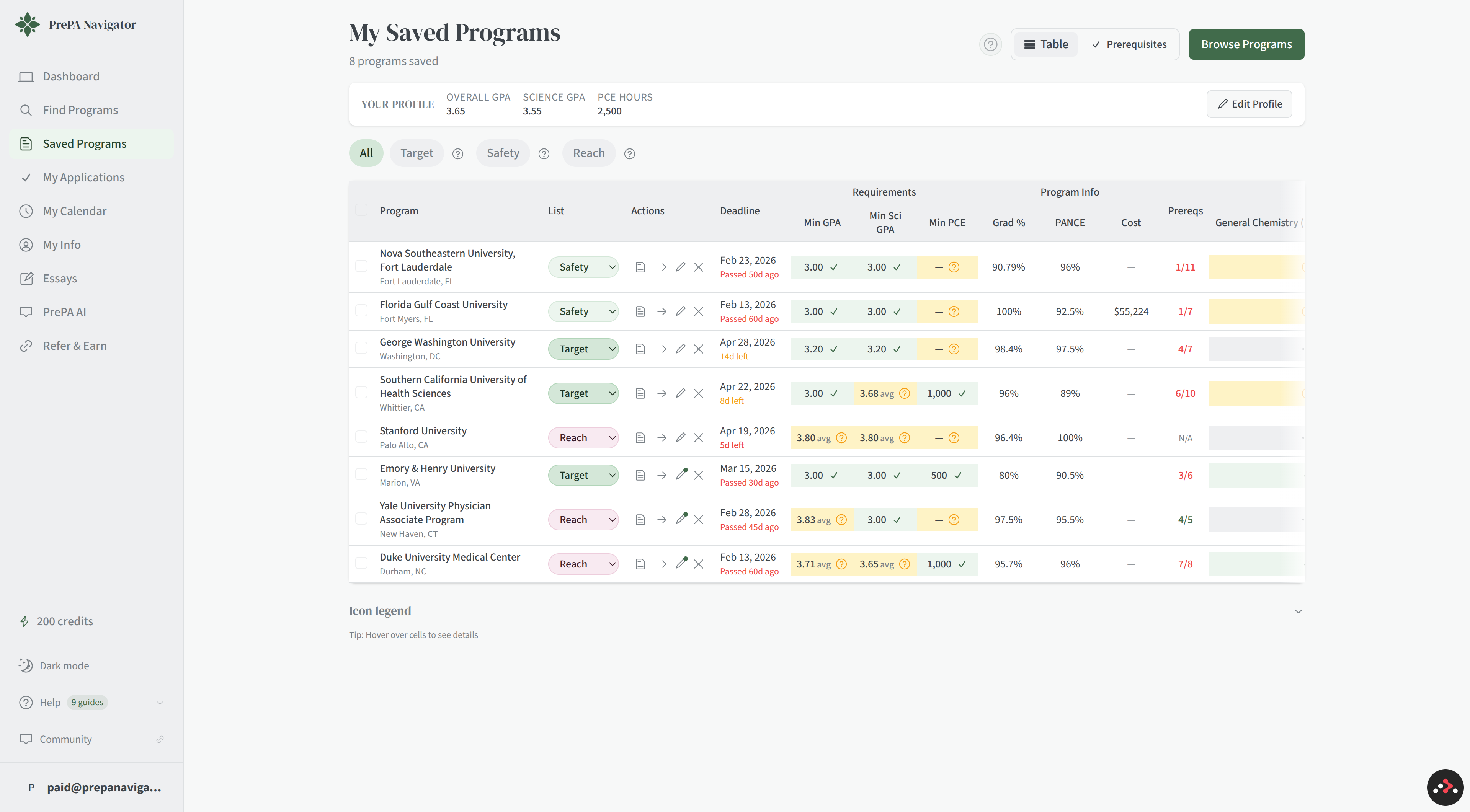
- Target — programs where your stats are a strong match
- Safety — programs where you comfortably exceed the minimums
- Reach — programs where you're stretching but want to try
A balanced mix of all three gives you the best shot at acceptance. Use the filter pills at the top to show all programs or just one category.
Comparison table
The default table view shows each program's key metrics side-by-side with your own profile stats — so at a glance you can see whether you meet each program's GPA floor, experience-hour minimum, and prerequisite list. Your stats stay pinned at the top of the table for easy reference as you scroll.
Columns include GPA requirements, PCE / HCE hours, deadlines, tuition, and more.
Prerequisites matrix
Toggle to the Prerequisites view to see a matrix of prerequisite requirements across all your saved programs. Easy way to spot which courses you still need and which programs your coursework already satisfies.
Starting applications
Once you've decided to apply to a program, you can start tracking your application from the same page — no need to visit each program's detail page.
Per-row
Click Start Application on any row to create an application for that program and jump into the tracker.
Bulk start
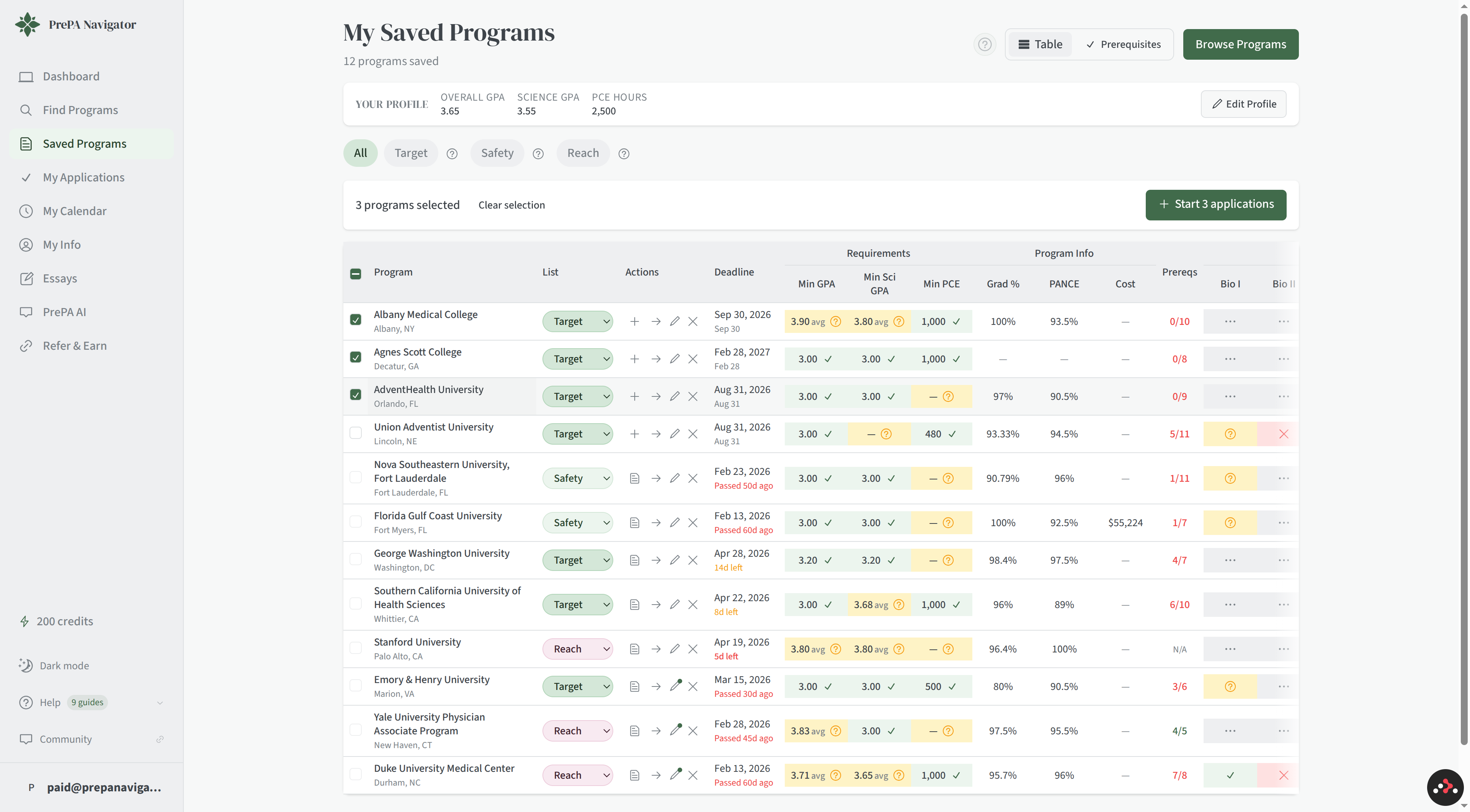
Select multiple rows using the checkboxes on the left. A Bulk Action Bar appears with a Start N applications button. Click it to create applications for every selected program at once. Good when you've finalized your school list and want to spin up all your trackers in one motion.
Data update notifications
When program data has been updated since you last viewed it, you'll see a notification next to that program. Click Mark all as seen to clear the indicators.
Manage your list
From the saved programs page you can:
- Change a program's list category using the dropdown
- Add notes to any saved program
- Remove programs you're no longer considering
- Click through to view full program details
- Start one or many applications (see above)
Tips
- Save programs as you browse — you can always reorganize later.
- Use the Prerequisites matrix to plan your remaining coursework across all your target schools at once.
- Use notes to track why you added each program (e.g. "great PCE match," "close to home," "met faculty at conference").
- When you're ready to apply, bulk-start all your applications at once rather than clicking through each program — saves a lot of time if you're applying to 15+ schools.
- Review your list periodically and remove programs that no longer fit.