
Prerequisites
PrePA Navigator automatically matches the courses you've taken to the prerequisites each PA program requires — so you can see at a glance which programs you've already met prereqs for and which you still need to fill.
How to Access
Go to My Info in the sidebar, or navigate to /me/my-info. Your courses and
prerequisite match status live together on this page.
How matching works
When you add a course to My Info — or upload a transcript — we normalize the course name and try to map it to a canonical course (e.g. "General Biology I", "Organic Chemistry II", "Statistics"). Canonical courses are grouped into categories like Science, Math, Behavioral Science, English, and Other.
Each PA program has its own list of required canonical courses. Once your courses are mapped, we compare them against every saved program's prereqs and mark each requirement as:
- Met — you've completed a course that satisfies it
- In Progress — you've told us you're currently taking (or planning to take) a course for it
- Partial — a multi-course requirement where you've done some but not all
- Missing — no match found yet
Category-level matching
Some programs accept any course in a category rather than a specific canonical course. For example: "any upper-division Biology" or "any Behavioral Science." Our matcher handles both — a category match counts even if the canonical names don't line up exactly.
Lab and institution extraction
Transcript uploads also pull out whether a course had a lab component and which institution it was taken at — both signals that programs sometimes factor into whether they'll accept a course.
Fixing a mis-matched course
Automatic matching isn't perfect. If a course is mapped to the wrong canonical course (or flagged as missing when you know it should count), you can override it.
- Open a program's detail page and scroll to the Prerequisites section.
- Click the status pill (Met, Partial, Missing, etc.) on the requirement you want to change — this opens the override dialog.
- Pick a status under Your assessment (Satisfied, Not Satisfied, or In Progress) and optionally add a note explaining why.
- Use the Link a course dropdown inside the same dialog to change which of your courses this requirement maps to — no need to bounce to a separate page to remap.
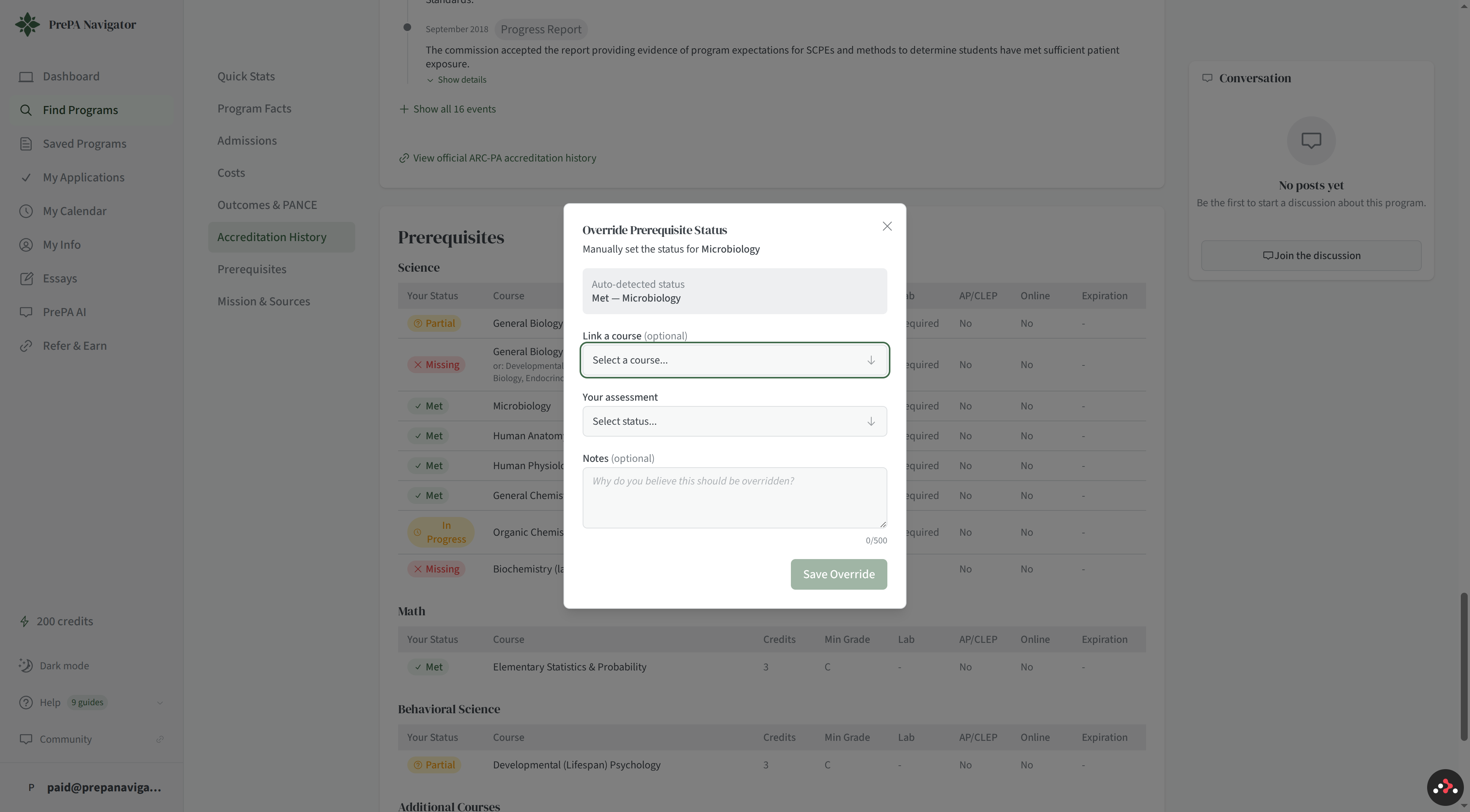
Overrides stick — they won't be undone by future transcript uploads or matching re-runs.
Grade requirements (A, B, B+, B−…)
Many programs require a minimum grade for each prereq, and some are specific about plus/minus variants (e.g. "B− or better" vs. "B or better"). We support the full A / A− / B+ / B / B− / C+ / C / C− / D / F scale so a program's grade floor is evaluated exactly the way the program states it.
Tips
- If you're unsure whether a course satisfies a requirement, override it to Satisfied with a note — you can always change it back after checking with the program.
- If you see a requirement that looks wrong for the program itself (not just your match), use the Report Incorrect Data flow on the program's detail page. Accepted reports earn AI credits.
- Add future courses with status In Progress so your match status reflects your plan, not just completed work.