
My Calendar
The Calendar gives you a visual timeline of every deadline and event across your applications, all in one place.
How to Access
Click My Calendar in the sidebar, or navigate to /calendar.
Event types
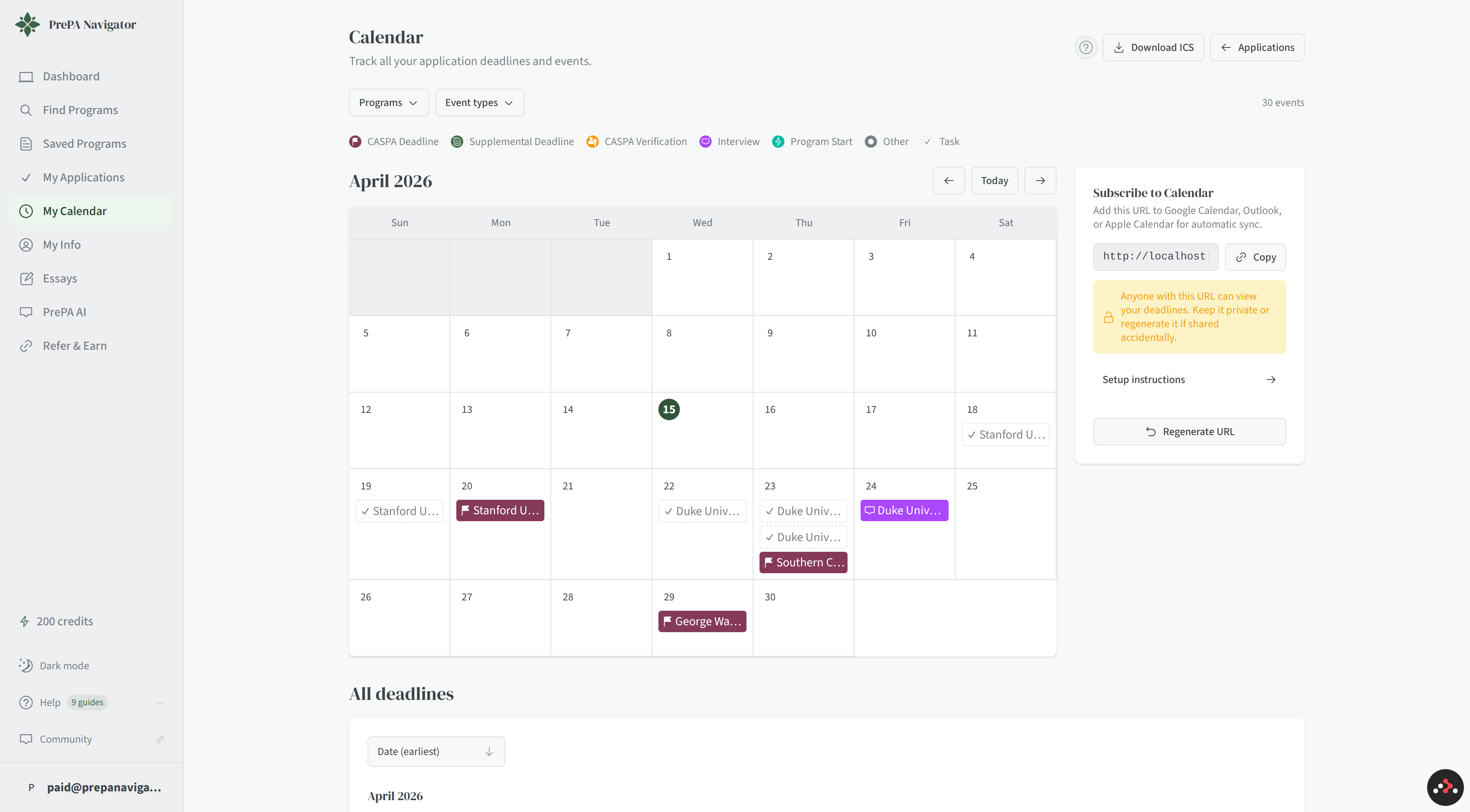
The calendar displays seven types of events, each with a distinct color:
- CASPA Deadline — when each program's CASPA application is due
- Supplemental Deadline — due dates for supplemental materials
- CASPA Verification — when a program needs your CASPA app verified
- Interview — scheduled interviews with programs
- Program Start — when each program's cohort begins
- Other — custom deadlines you've added yourself on an application
- Task — application tasks you've given a due date
A color legend at the top of the page shows what each color means.
Custom deadlines (the "Other" category)
Some programs have requirements that aren't on CASPA's standard schedule — scholarship deadlines, letter-of-intent windows, or supplemental due dates your program published but CASPA doesn't track. You can add these as custom deadlines on any application, and they'll show up on the calendar under Other alongside the standard events.
Tasks with due dates
When you add a task to an application and give it a due date, it also surfaces on the calendar. Tasks that are marked complete appear with a strikethrough so you can see at a glance what's still outstanding.
Views
Month view
A full month grid with each day cell showing events for that date. Click any event to jump to its application detail page. Navigate between months using the arrow buttons, or click Today to return to the current month.
List view
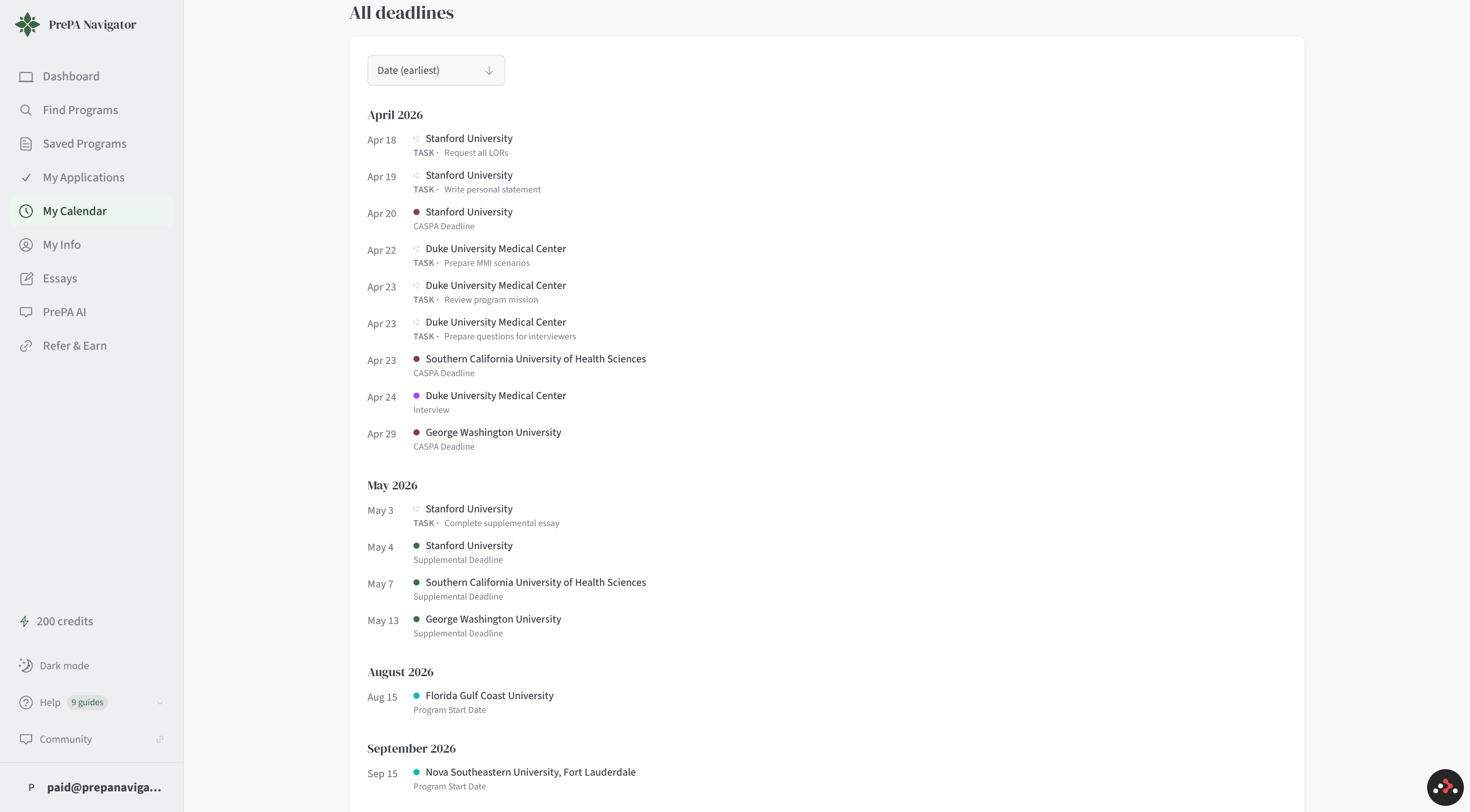
Scroll below the month grid to All deadlines — every event across every month in one scrolling list, sorted chronologically. Useful when you want to plan a whole cycle at once instead of flipping month-by-month.
Filters
Both views support two filters:
- Programs — narrow to events for one or more programs
- Event types — narrow to a specific type (e.g. show only Interviews)
Combine them however you want — "just the supplemental deadlines for my top three schools," for instance. Clearing both filters returns to the full calendar.
Upcoming events
A sidebar shows your next five upcoming events with the date, color indicator, program name, and event type. Quick glance at what's coming up without scanning the full calendar.
Subscribe to the calendar feed
Sync your PrePA Navigator deadlines with your personal calendar app. Click Subscribe to Calendar to reveal a feed URL you can add to:
- Google Calendar — Settings → Add calendar → From URL
- Microsoft Outlook — Add calendar → Subscribe from web
- Apple Calendar — File → New Calendar Subscription
The feed updates automatically as you change application statuses or add new programs. If you ever need to revoke access, click Regenerate URL to create a new one (any calendars using the old URL will stop updating).
Note: Anyone with your feed URL can view your deadlines. Keep it private or regenerate it if shared accidentally.
Download ICS
Click Download ICS in the page header to export a snapshot of your calendar
as an .ics file. Useful for a one-time import if you prefer not to use the
live subscription.
Tips
- Check your calendar weekly so no deadlines sneak up on you.
- Use the list view in the final month before cycle deadlines — easier to see everything at once than paging through months.
- Subscribe to the calendar feed for real-time sync — more reliable than downloading ICS files since it updates automatically.
- Add custom deadlines the moment a program sends you a supplemental or scholarship email. They're easy to forget otherwise.