
Getting Started with PrePA Navigator
Welcome to PrePA Navigator — your all-in-one hub for the PA school application cycle. This guide walks you through everything you need to know, from creating your account to tracking your applications.
Creating Your Account
Sign Up
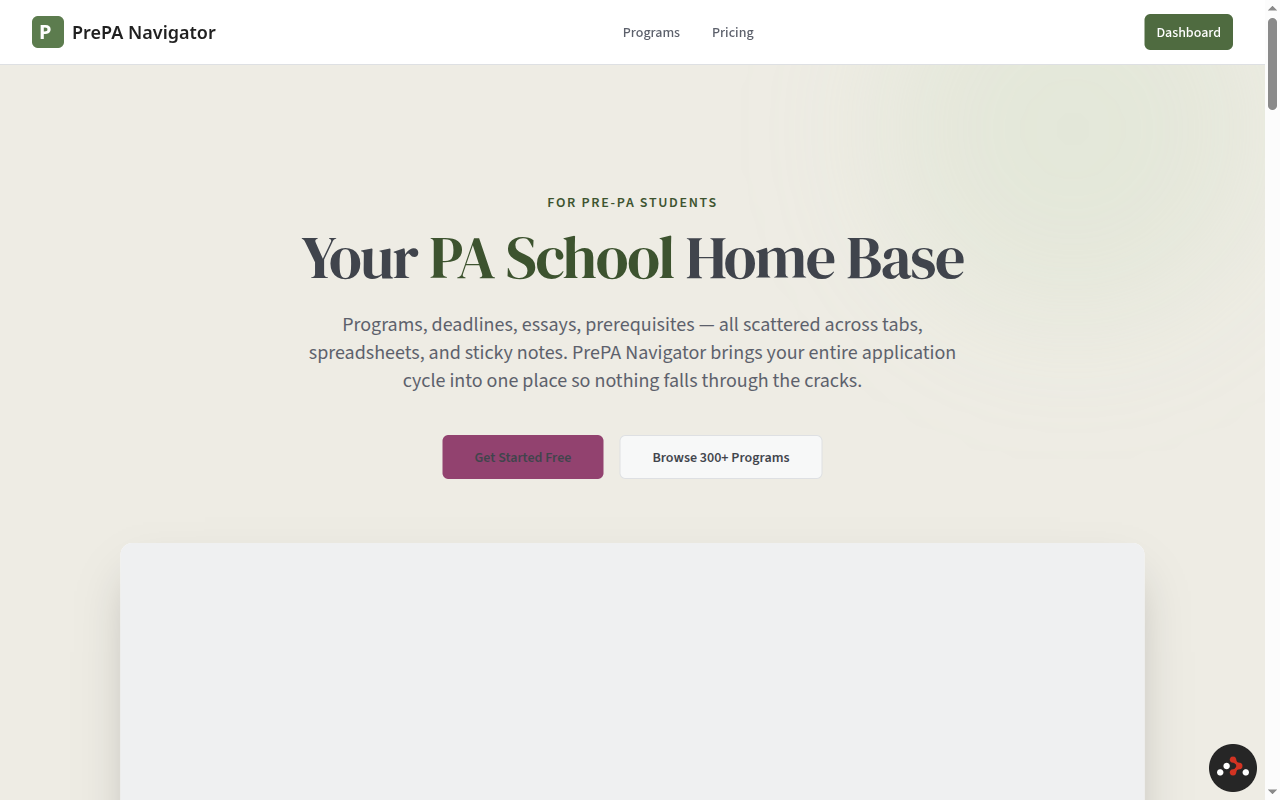
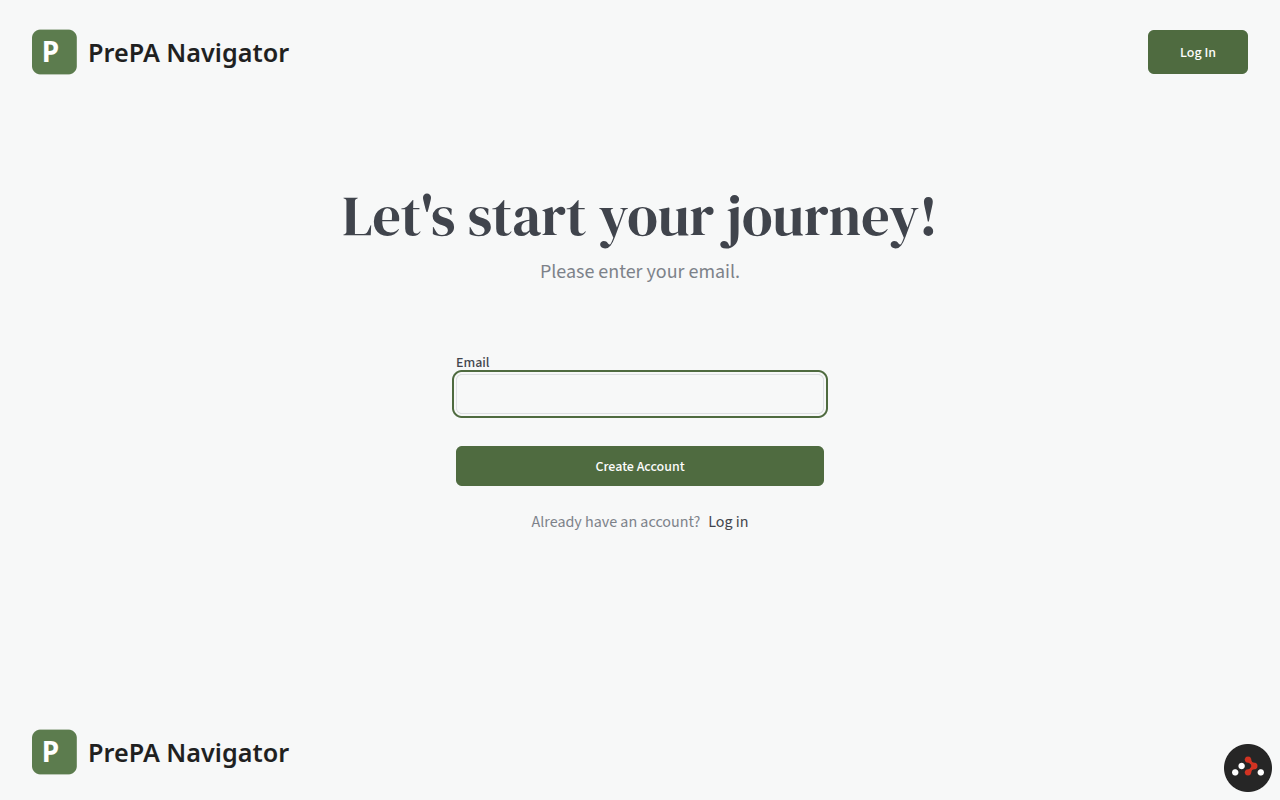
Head to prepanavigator.com and click Get Started Free. Enter your email address and click Create Account.
Verify Your Email
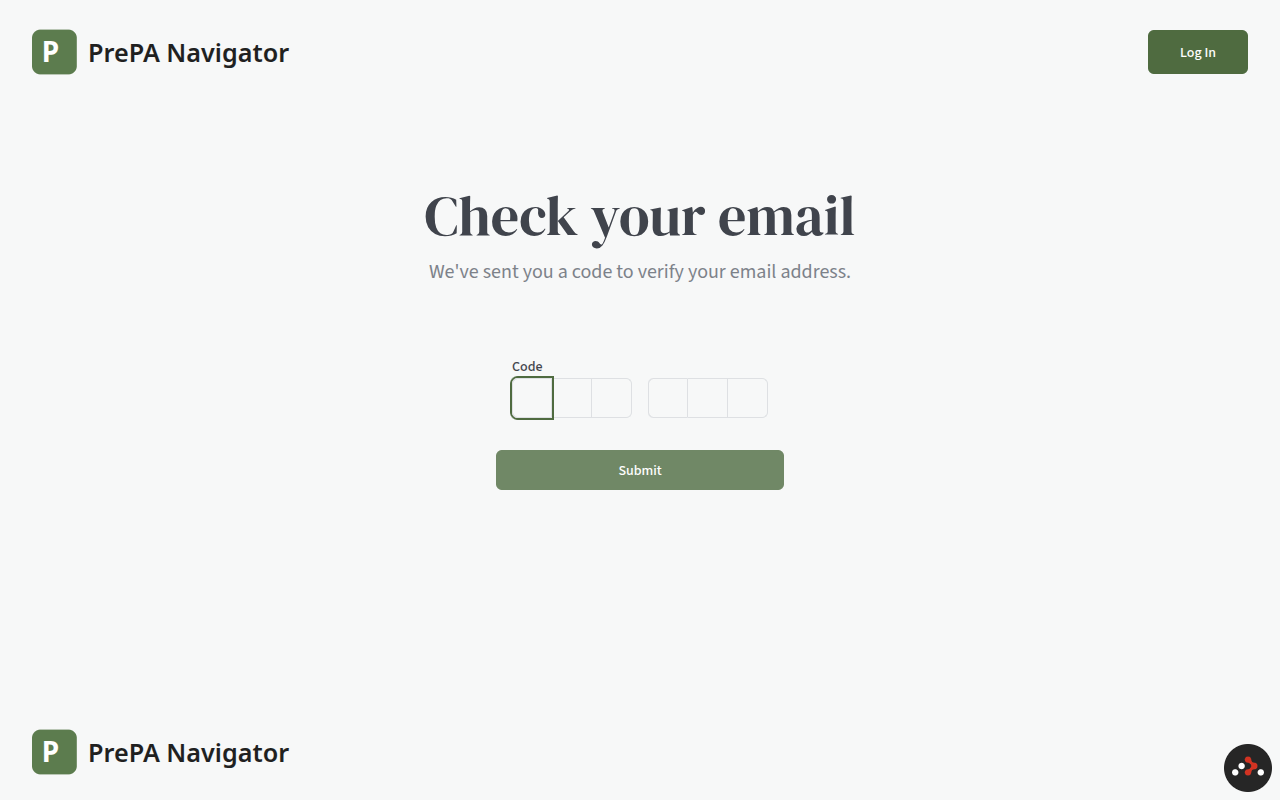
Check your inbox for a 6-digit verification code. Enter it on the verification page and click Submit. The code is valid for 10 minutes.
Welcome to PrePA Navigator
After verifying your email, your account is created instantly and you're taken straight to your Dashboard. A floating onboarding checklist appears in the bottom-right corner of every logged-in page and walks you through the setup steps — add your academic info, save programs, start tracking applications, try PrePA AI, draft an essay, and check your calendar. Steps check off automatically as you complete them.
Profile data like GPA, experience hours, and coursework can be added at any time
from the My Info page (/me/my-info). Filling in your profile unlocks
powerful features like the "Apply My Profile" filter, prerequisite matching, and
personalized program comparisons.
Tip: Head to My Info early to enter your GPA and PCE hours — this makes the program filters much more useful from day one.
Finding Programs
Browse & Search
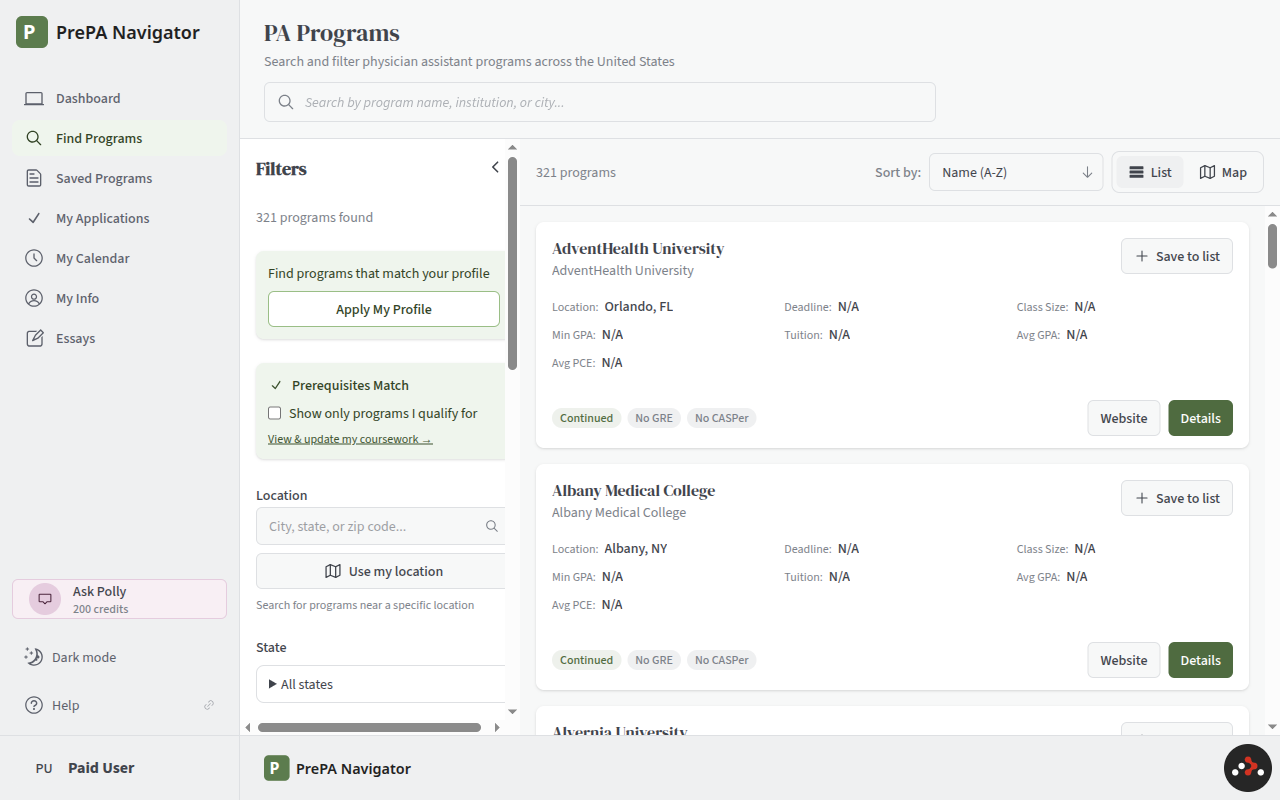
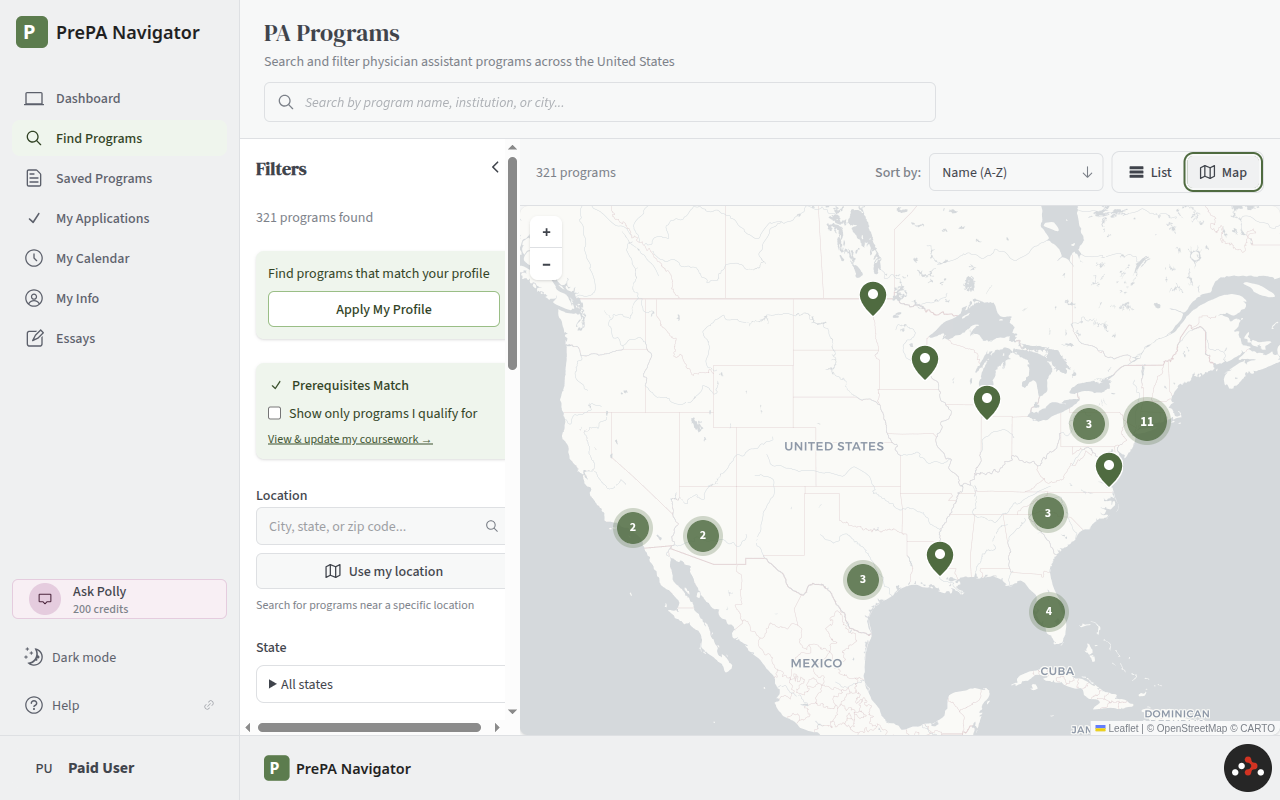
The Find Programs page lists 300+ accredited PA programs across the United States. Use the search bar at the top to find programs by name, institution, or city.
Filters
The left sidebar has powerful filters to narrow your search:
- Apply My Profile — Instantly filter by your GPA and PCE hours
- Prerequisites Match — Show only programs where you meet the coursework requirements
- Location — Search by city, state, zip code, or use your current location
- State — Filter by one or more states
- PCE / HCE / GPA — Set minimum thresholds to match your stats
- Test Requirements — Find programs that don't require the GRE or CASPer
- Tuition Range — Set a budget range
- Application Deadline — Filter by date range
- Min PANCE Pass Rate — Set a minimum first-time PANCE pass rate
- Class Size — Filter by number of students per cohort
- Accreditation Status — Filter by Continued, Provisional, or Probation
- Test Requirements — Find programs by GRE, CASPer, or PA-CAT requirements
- Rolling Admissions — Show only programs with rolling or standard deadlines
Sorting
Use the Sort by dropdown to reorder programs by:
- Name (A-Z)
- Deadline (soonest first)
- Tuition (low to high)
- Min GPA (low to high)
- Distance (nearest — when a location filter is active)
- PANCE Rate (best first)
Map View
Click the Map toggle in the top-right to see programs plotted on an interactive map. Click any marker or cluster to see program details. This is great for exploring programs in a specific region.
Viewing Program Details
Click any program name or the Details button to open its full profile page. A sidebar on the left lets you jump to any section:
- Quick Stats — PANCE pass rate, tuition, class size, duration, deadline, min GPA, and avg PCE hours at a glance
- Program Facts — Degree type, duration, accreditation status, CASPA membership, plus a "Your Fit" card comparing your stats
- Admissions — GPA requirements, test requirements (GRE, CASPer, PA-CAT)
- Timeline — Application and supplemental deadline dates
- Class Profile — Average stats for admitted students
- Costs — Tuition and fee breakdown
- Outcomes & PANCE — Graduation rates, employment rates, and PANCE pass rate history
- Prerequisites — Required coursework and how your courses match up
- Mission & Details — Program mission statement, contact info, and citations
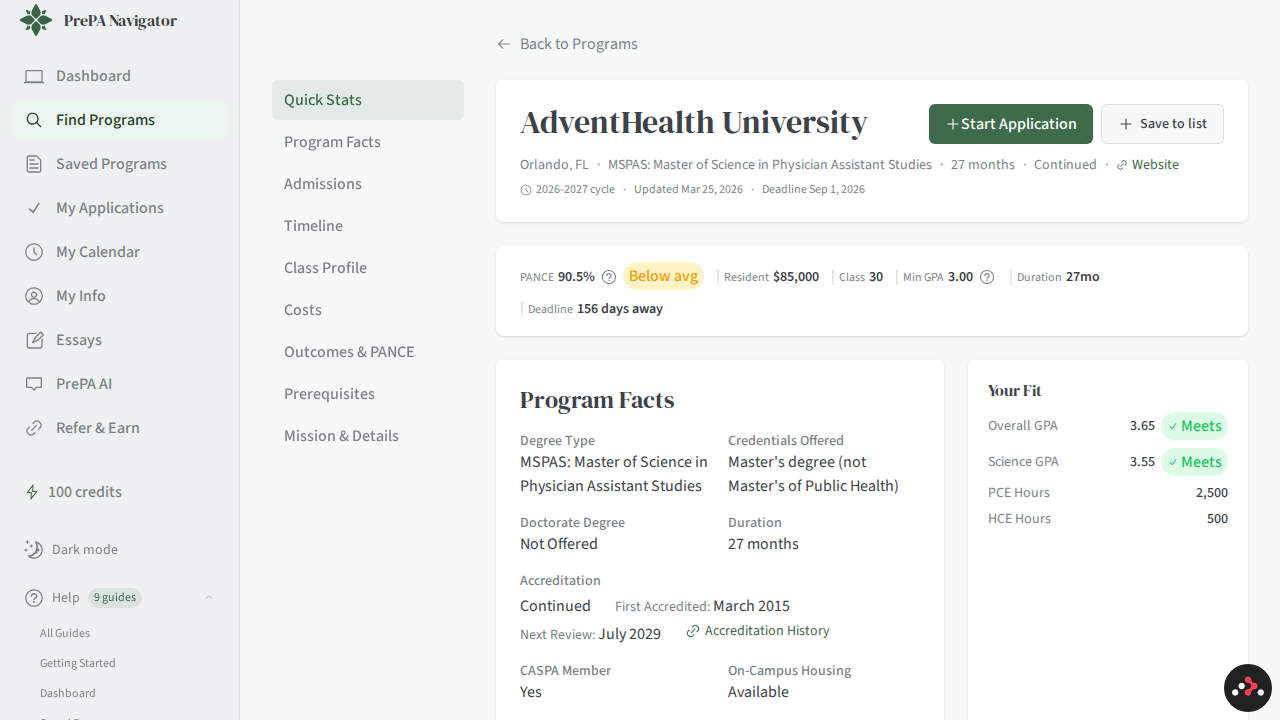
From the program detail page, you can also:
- Click Start Application to begin tracking your application to this program
- Click Save to list to add it to your saved programs
- Click Report Data Issue if you notice incorrect information
Saving Programs
When you find a program you're interested in, click Save to list. You'll see three categories:
- Target — Programs where your stats are a strong match
- Safety — Programs where you comfortably exceed the minimums
- Reach — Programs where you're stretching but want to try
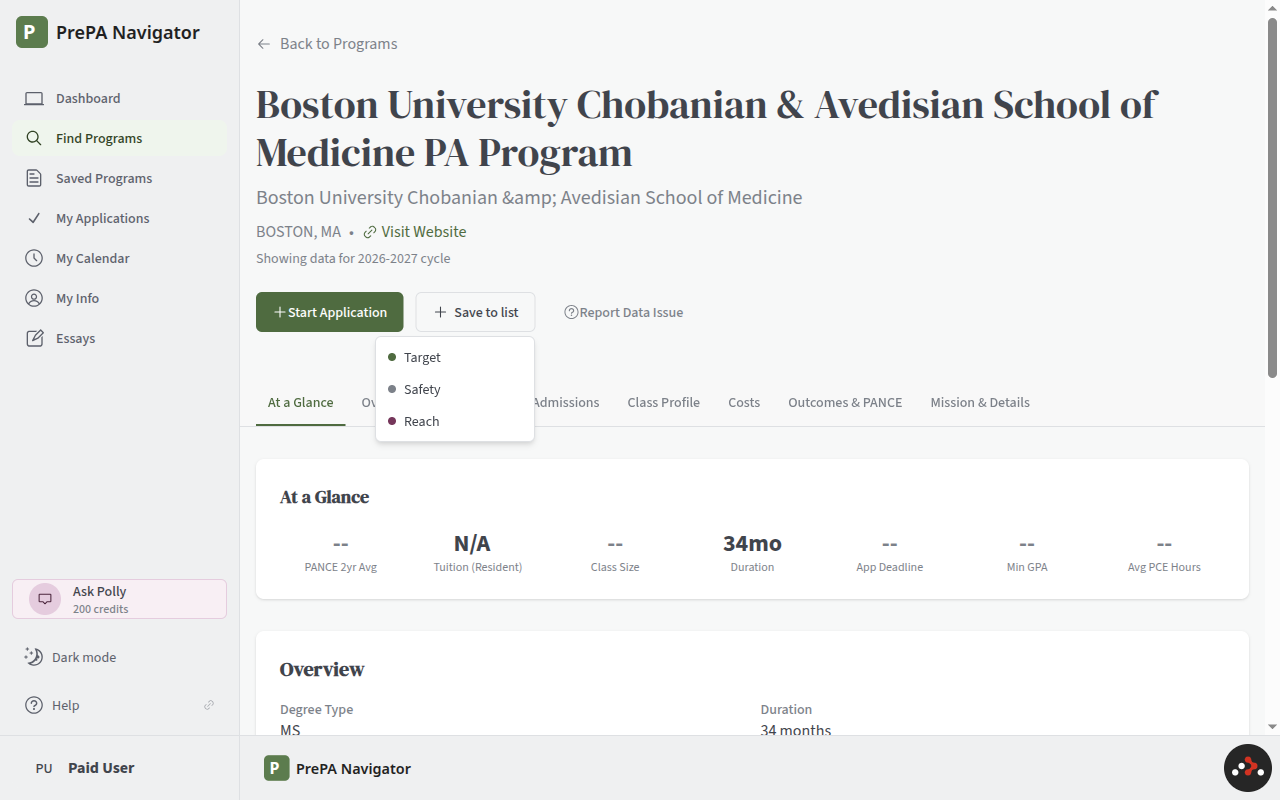
These categories help you build a balanced school list — a mix of targets, safeties, and reaches gives you the best chance of getting accepted somewhere you'll thrive.
Viewing Saved Programs
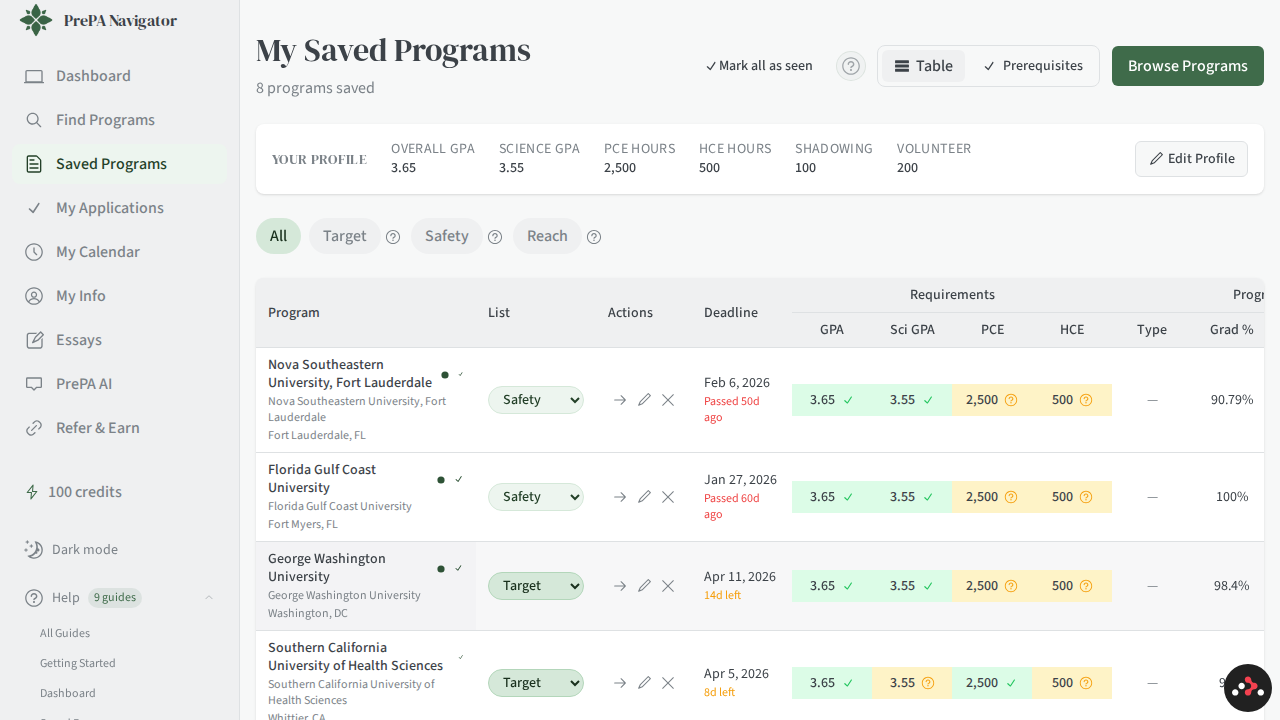
Click Saved Programs in the sidebar to see all your saved programs in a comparison table. From here you can:
- Filter by list type (Target, Safety, Reach)
- Compare your GPA and hours against each program's requirements at a glance
- Change a program's list category using the dropdown
- Add notes to any program
- Click through to view full program details
Your profile stats are shown at the top so you can quickly see how you stack up.
Your Dashboard
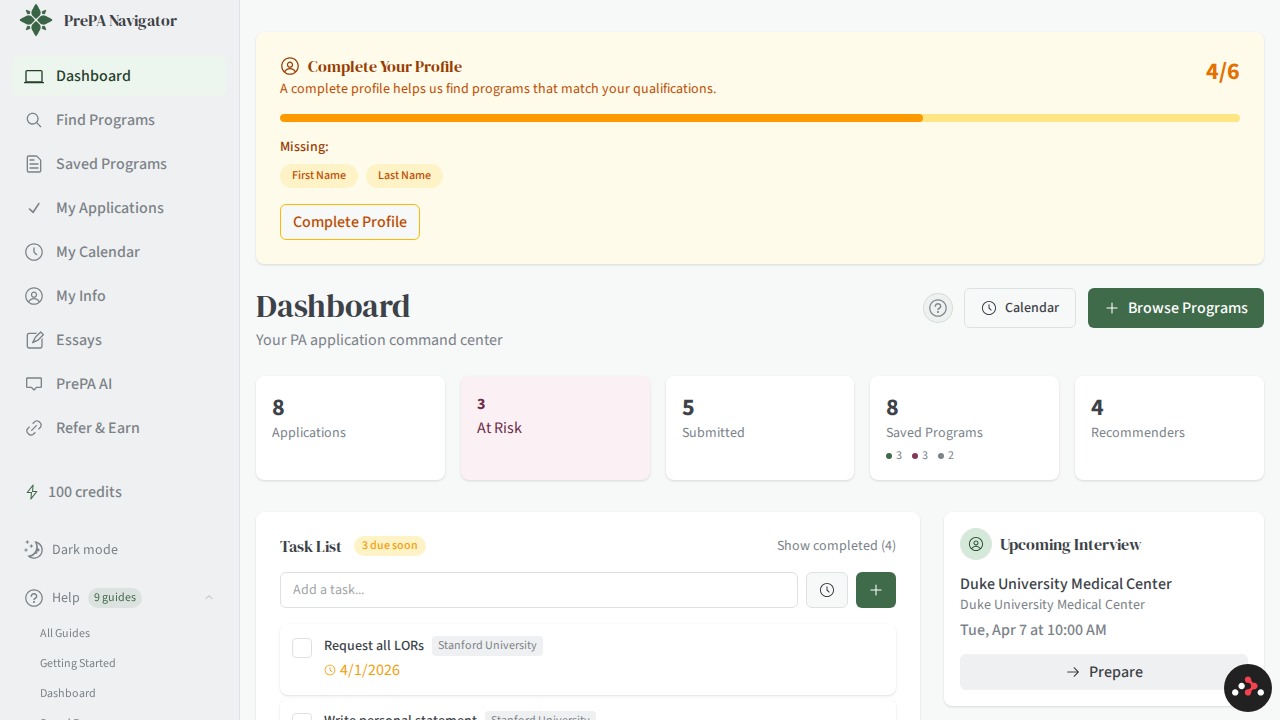
The Dashboard is your home base. It shows you everything at a glance:
- Summary cards — Applications, At Risk, Submitted, Saved Programs (with Target/Reach/Safety breakdown), and Recommenders
- What's Next — A unified stream of personal tasks and application tasks with stats (total, completed, overdue, due this week)
- Upcoming Deadlines — Color-coded CASPA deadlines, supplemental deadlines, and interview dates from your calendar
- Interview Schedule — Quick access to your next upcoming interview
- Onboarding checklist — A floating widget in the bottom-right corner that tracks your setup progress across every page. Dismiss it any time once you're set up.
Tracking Applications
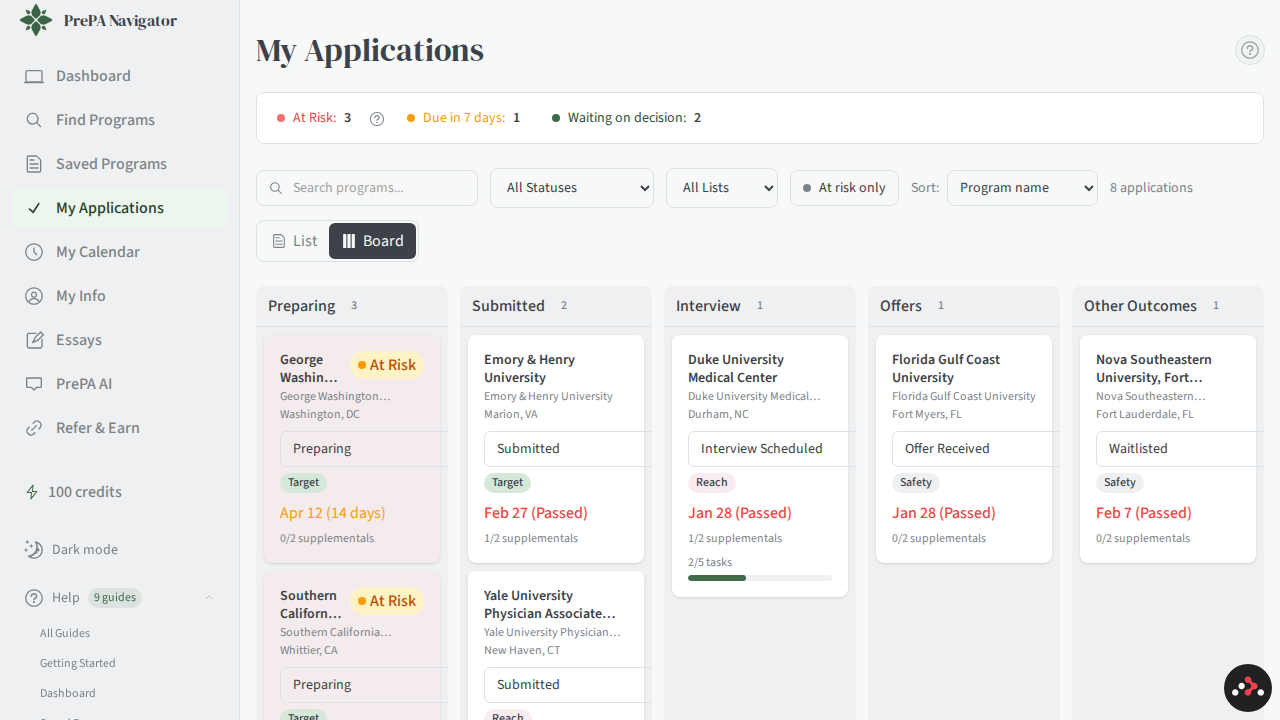
The My Applications page tracks every program you're applying to. At the top, a Triage Strip shows at-a-glance counts for At Risk, Due Soon, Overdue, and Waiting on Decision — click any counter to filter.
You can switch between two views:
- Board (default) — A kanban board with columns for Preparing, Submitted, Interview, Offers, and Other Outcomes
- List — Applications grouped into Preparing, In Review, and Outcomes sections
Use the search bar and filters to find applications by name, status, list type (Target/Safety/Reach), or at-risk status.
Application Statuses
Your applications move through these stages:
- Preparing — You're working on materials
- Ready to Submit — Everything is complete
- Submitted — Application sent
- Interview Scheduled — You got an interview
- Interview Completed — Interview is done, waiting on decision
- Offer Received — Congratulations!
- Offer Accepted / Declined — Your final decision
- Waitlisted — Hang tight
- Rejected / Withdrawn — This one didn't work out
You can change an application's status at any time using the dropdown on each card.
Managing Your Profile
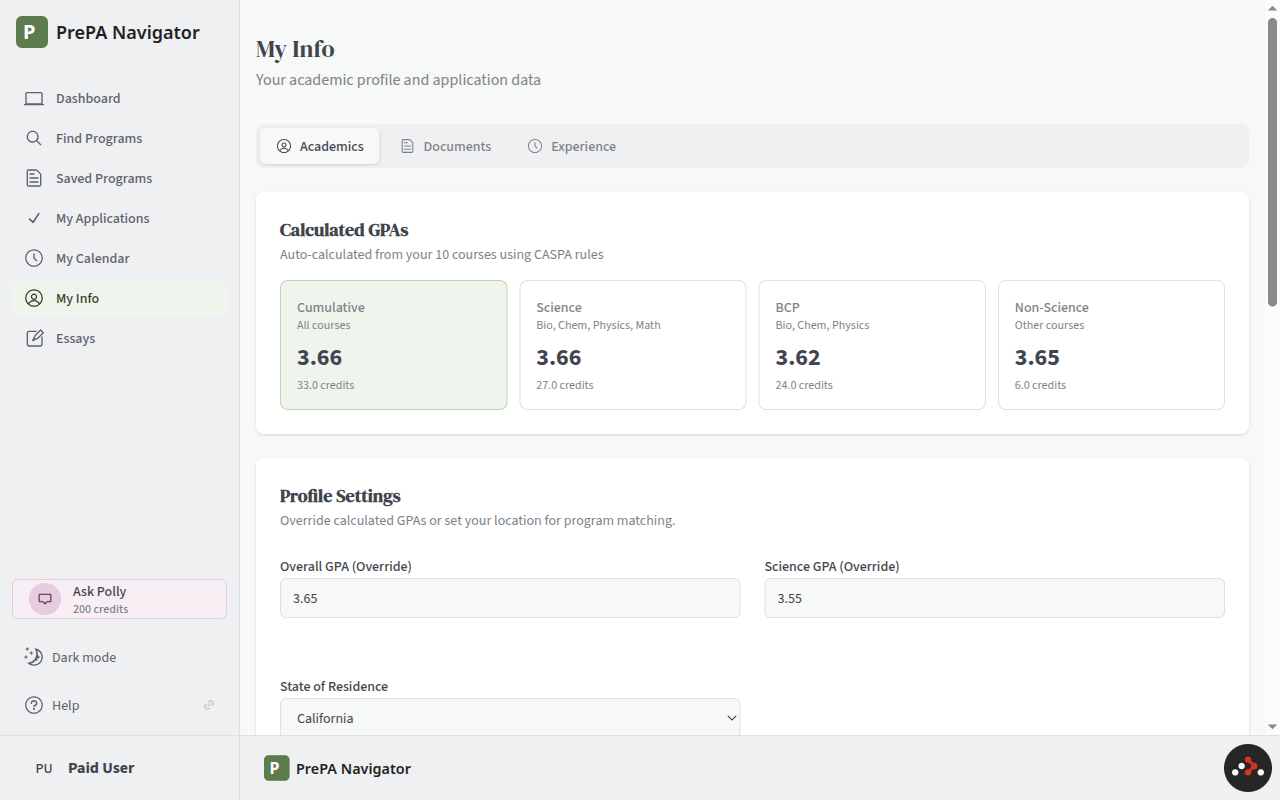
The My Info page is where you manage your academic data. It has three tabs:
Academics
- Calculated GPAs — Your cumulative, science, BCP, and non-science GPAs, auto-calculated from your coursework using CASPA rules
- Profile Settings — Override calculated GPAs or set your state of residence for program matching
- Courses — Add and manage your prerequisite coursework. Each course shows subject, grade, credits, term, and completion status
Documents
Upload transcripts and other documents. We'll analyze your transcripts to help match your coursework against program prerequisites.
Experience
Track your patient care, healthcare, shadowing, volunteer, and research hours in one place.
Getting Help
If you have questions or run into issues:
- Click the Help menu in the sidebar to browse documentation for each feature
- Look for the ? icon on any page header for context-specific help
- Visit our Support page for contact information and documentation links
- Use PrePA AI (our AI assistant) in the sidebar for quick answers about the app
For detailed guides on specific features, see our documentation hub:
- Dashboard — Your application command center
- Saved Programs — Building your school list
- Application Tracker — Managing your applications
- My Calendar — Deadlines and events
- Essays — Writing and managing essays
- My Recommenders — Tracking your recommenders
- PrePA AI — Your AI-powered advisor
We're here to help you succeed in your PA school journey. Good luck!